
Every time you switch on a computer, unlock a phone, or start a smart television, an invisible piece of software wakes up before anything else does. It checks the hardware, loads the programs you need, and quietly manages every resource in the machine while you work, play, and browse. That software is the operating system, and understanding how operating systems work is one of the most useful foundations in all of computing. Whether you are a student, a curious beginner, or someone choosing a new device, this guide explains operating systems in plain language, from the kernel at their core to the schedulers, memory managers, and file systems that keep everything running smoothly.
What Is an Operating System?
An operating system, usually shortened to OS, is the system software that sits between the user, the applications, and the computer hardware. Without it, every program would have to know exactly how to talk to each brand of processor, hard drive, keyboard, and screen. With it, programs can simply ask for what they need — “save this file,” “draw this window,” “send this data over the network” — and the operating system takes care of the details.
Think of the operating system as the manager of a busy office building. The hardware is the building itself: the rooms, the electricity, the lifts, and the telephone lines. The applications are the people working inside. The operating system is the building manager who decides who gets which room, makes sure nobody hogs the electricity, keeps the corridors clear, and locks the doors at night. When the manager does the job well, the workers barely notice the building at all — and that is exactly how a good operating system feels.
An operating system performs several essential jobs, and every one of them matters:
- Process management: starting, pausing, resuming, and ending programs, and sharing the processor fairly between them.
- Memory management: giving each program the memory it needs while keeping programs safely separated from each other.
- File management: organising data on disks into files and folders that can be found, opened, and protected.
- Device management: communicating with keyboards, screens, printers, storage drives, and network adapters through drivers.
- Security and access control: checking who you are, what you are allowed to do, and keeping malicious software contained.
- User interface: providing the desktop, menus, and touchscreens through which people actually interact with the machine.
A Short History of Operating Systems
Operating systems did not appear overnight. Early computers of the 1950s had no operating system at all. Programmers fed instructions into the machine one job at a time, often on punched cards, and the expensive computer sat idle while operators loaded the next job. Batch processing systems soon arrived, grouping jobs together so the machine spent less time waiting.
The 1960s brought time-sharing, which let several users work on one machine at once, each feeling as though they had the computer to themselves. Unix, developed at Bell Labs in 1969, became one of the most influential systems ever built. Its design ideas — small tools that do one job well, everything treated as a file, and a powerful command line — still shape modern systems, including Linux and macOS.
Personal computing changed everything in the 1980s. MS-DOS gave early IBM-compatible PCs a command-line interface, and Microsoft Windows added a graphical desktop on top of it. Apple introduced the Macintosh in 1984 with a mouse-driven interface that made computers approachable for ordinary people. In 1991, a Finnish student named Linus Torvalds released the first version of the Linux kernel, which grew into the open-source family of systems that now powers most of the world’s servers, supercomputers, and Android phones.
The 2000s and 2010s pushed operating systems onto phones, tablets, watches, and televisions. Apple’s iOS and Google’s Android turned the phone into the computer most people use most, while cloud computing moved much of the heavy work into data centres running Linux. Today, the operating system landscape is broader than ever, from tiny real-time systems in cars and medical devices to massive server systems running global services.
The Kernel: The Heart of the Operating System
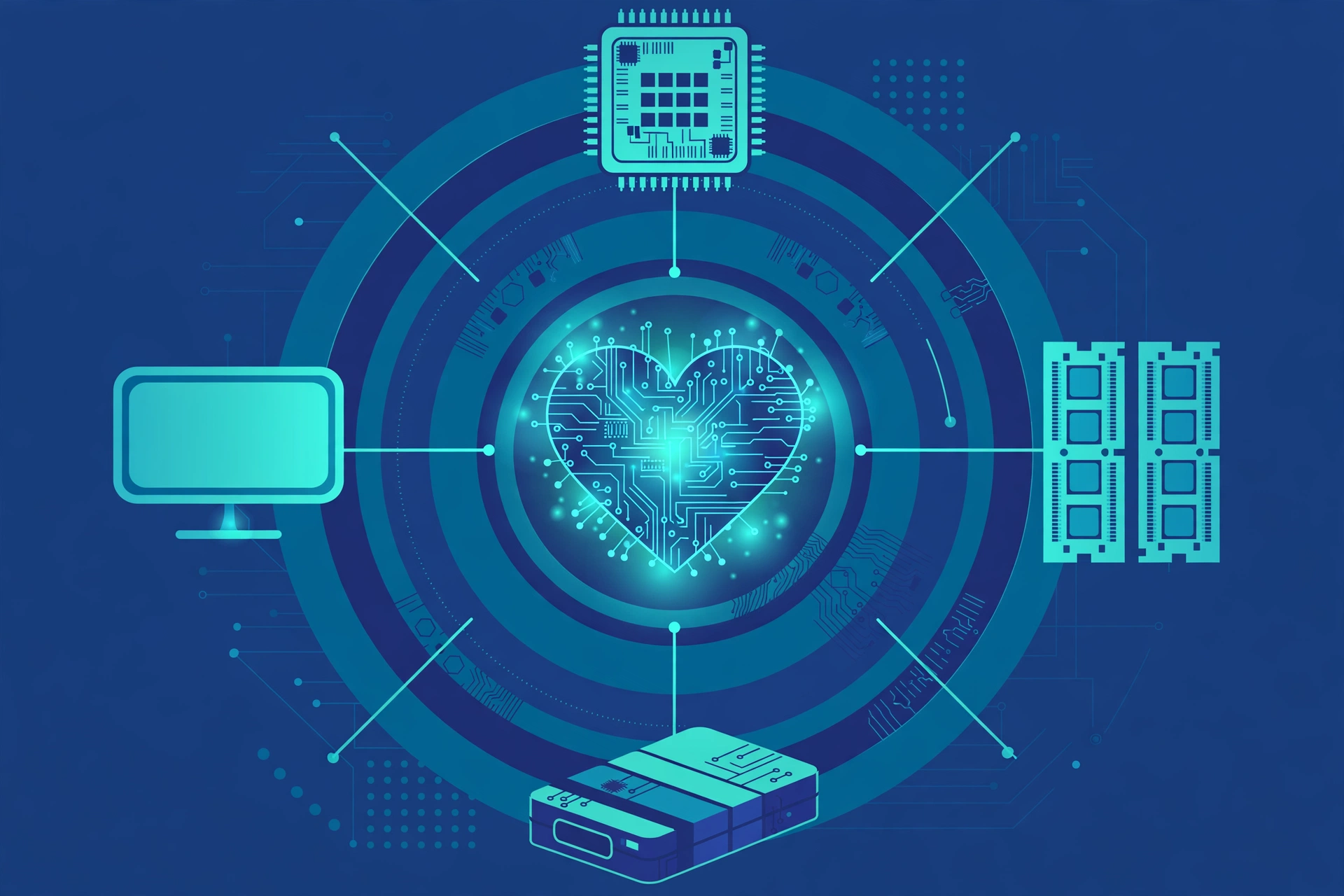
At the centre of every operating system is the kernel. The kernel is the core program that has direct control over the hardware. It starts when the computer boots and keeps running until the machine is switched off. Everything else — your browser, your word processor, your music player — runs on top of it and must ask it for access to hardware resources.
The kernel runs in a privileged mode called kernel mode, while ordinary applications run in user mode. This separation is a crucial safety feature. A program in user mode cannot directly touch memory belonging to another program, reprogram hardware, or crash the whole machine. If it needs something privileged, it makes a system call — a polite, checked request to the kernel, which either fulfils it or refuses it.
There are two classic kernel designs, and real systems usually sit somewhere on the spectrum between them:
- Monolithic kernels put most operating system services — scheduling, memory management, file systems, and device drivers — into one large program running in kernel mode. Linux and classic Windows designs follow this approach, which is fast because services communicate directly, but a bug in one part can potentially affect the whole kernel.
- Microkernels keep only the bare minimum in kernel mode — basic message passing, scheduling, and memory primitives — and run everything else, including drivers and file systems, as separate user-mode services. This design is more modular and fault-isolated, but passing messages between services adds overhead. Research and specialised systems such as MINIX and parts of Apple’s XNU heritage draw on microkernel ideas.
Hybrid kernels, used by Windows and macOS, blend the two approaches: core services run in kernel mode for speed, while some components run in user mode for flexibility. For a beginner, the exact label matters less than the principle — the kernel is the trusted core that arbitrates every interaction between software and hardware.
How an Operating System Boots Up
Understanding how operating systems work starts with the first few seconds after you press the power button. The sequence, called booting, is a carefully choreographed handover:
- Firmware runs first. The motherboard’s firmware — historically BIOS, today almost always UEFI — performs a power-on self-test, checking that the processor, memory, and key devices are present and working.
- The bootloader loads. The firmware finds the bootloader on the storage drive, a small program whose only job is to load the operating system kernel into memory.
- The kernel takes over. The kernel initialises the processor, sets up memory management, and loads the device drivers needed to talk to storage, display, and input hardware.
- System services start. The kernel starts essential background services: networking, login, security, and file system mounting.
- The user interface appears. Finally, the login screen or desktop appears, and the machine is ready for you.
On a modern computer with a solid-state drive, this whole chain can complete in a matter of seconds. On a phone, the same idea applies, with the bootloader loading the mobile operating system kernel before the lock screen appears.
Process Management: How the OS Juggles Programs
A process is a program in execution — not just the code on disk, but the code plus its memory, open files, and current state. When you open a web browser, a music app, and a document editor at the same time, the operating system creates a separate process for each one. Even though most computers have only a handful of processor cores, the operating system makes dozens or hundreds of processes appear to run simultaneously. The trick is called multitasking, and the scheduler is the component that performs it.
The Scheduler and Time Slices
The scheduler gives each runnable process a short turn on the processor, called a time slice or quantum, typically lasting a few milliseconds to a few tens of milliseconds. When the slice expires, a timer interrupt fires, the kernel saves the outgoing process’s state — its registers, program counter, and stack pointer — and restores the next process’s state. This save-and-restore step is a context switch, and from each process’s point of view, the pause is invisible: it simply runs for a while, then runs some more later.
Context switches are not free. Saving registers is cheap, but the new process’s data is usually not in the processor’s caches, so it suffers cache misses until its working set is loaded. That is why time slices are not made extremely short: a one-microsecond slice on a 3 GHz processor would allow only about 3,000 cycles of useful work before a context switch that might cost 10,000 cycles in cache misses alone. Real schedulers balance responsiveness against this overhead.
Threads: Lighter-Weight Workers
Many processes are split into threads, smaller units of execution that share the process’s memory but run independently. A web browser, for example, might use one thread to render a page, another to run JavaScript, and a third to handle downloads. Threads make programs more responsive — one slow task does not freeze the whole application — and the scheduler can spread them across multiple processor cores for genuine parallel execution.
Process States and Priorities
A process moves through states during its life: new, ready, running, waiting (for example, for a file or network response), and terminated. The scheduler uses priorities to decide who runs next. Interactive programs, such as the app you are typing in, usually get priority so the system feels responsive, while background jobs like backups and updates run when the processor is free. Modern schedulers, such as Linux’s Completely Fair Scheduler, try to give every process a fair share of processor time in proportion to its priority.
Memory Management: Virtual Memory and Paging
Memory management is one of the operating system’s most elegant achievements. Physical memory (RAM) is limited — a typical laptop might have 8 or 16 gigabytes — yet you can open programs whose combined demands exceed that. The operating system makes this possible through virtual memory.
Each process is given its own private virtual address space, as though it owned all the memory in the machine. The memory management unit (MMU), a hardware component working with the kernel, translates virtual addresses into physical addresses on the fly. Because each process lives in its own address space, one program cannot accidentally — or maliciously — read or overwrite another program’s memory. This isolation is a foundation of system stability and security.
Virtual memory is divided into fixed-size blocks called pages, typically 4 kilobytes each. When a process accesses a page that is not currently in RAM, the MMU raises a page fault, and the kernel loads the page from storage, possibly evicting a page that has not been used recently. If RAM fills up, the operating system can swap pages out to a reserved area of the disk, called swap space or a page file. Swapping lets the system keep running under heavy load, though it is much slower than RAM, which is why a computer with too little memory feels sluggish when many programs are open.
Other memory management techniques you may hear about include:
- Segmentation: dividing memory into logical segments, such as code, data, and stack, an older technique that complements paging in some designs.
- Memory-mapped files: treating a file on disk as if it were part of a process’s memory, which simplifies reading large files efficiently.
- Shared memory: letting cooperating processes deliberately share a region of memory for fast communication, under the kernel’s supervision.
- Garbage collection and allocation: at the application level, runtimes and libraries manage memory within the space the operating system provides, but the operating system itself reclaims everything when a process ends, so a crashed program cannot leak memory forever.
File Systems: How Data Is Stored and Found
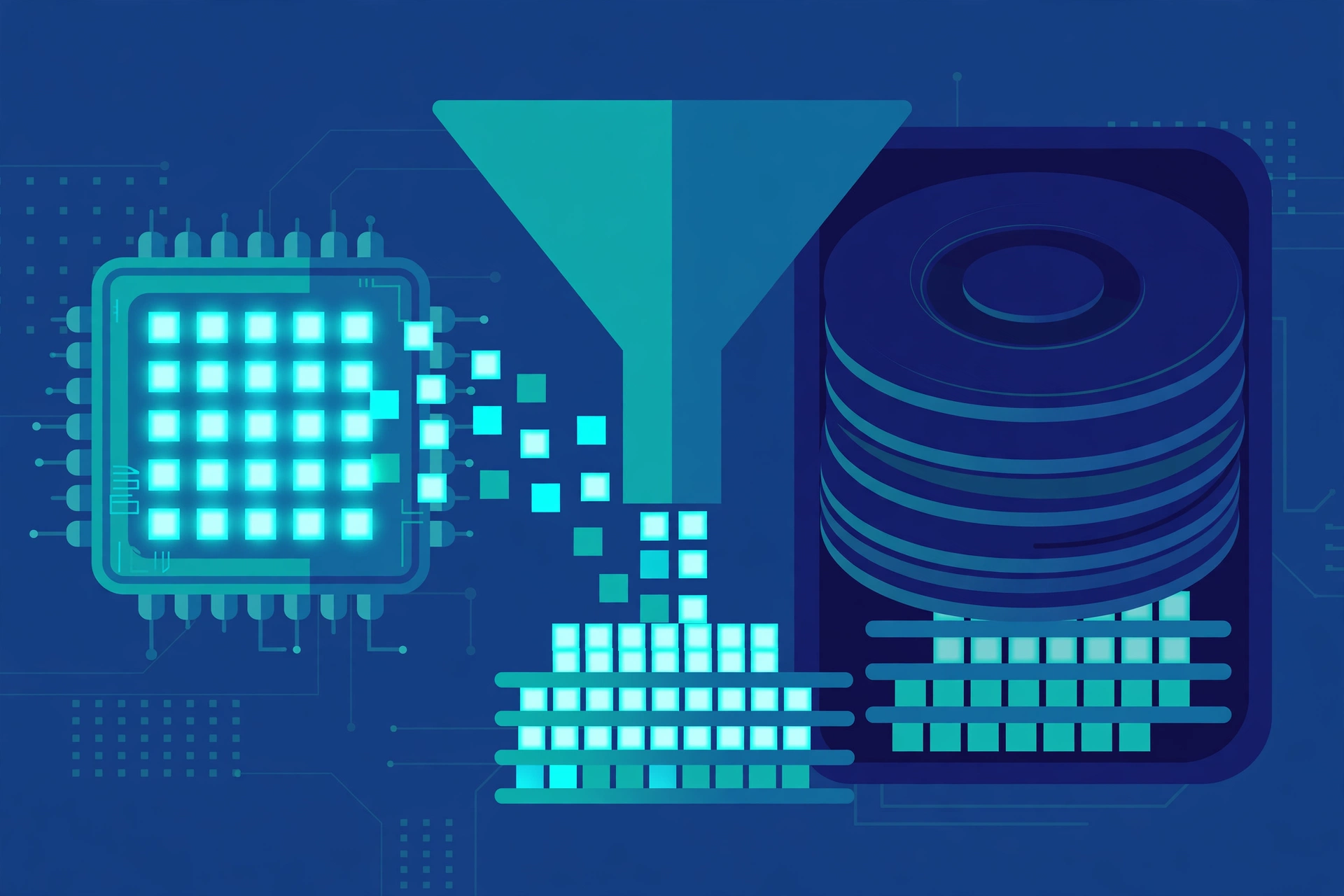
A file system is the operating system’s method for organising data on storage devices. It tracks where each file’s data physically lives, manages permissions so only authorised users can open sensitive files, and keeps track of free space. Without a file system, a disk would be just a sea of bytes with no way to find anything.
Common file systems include NTFS on Windows, APFS on modern Apple devices, ext4 on many Linux distributions, and FAT32 and exFAT on removable drives where compatibility across systems matters. Each makes different trade-offs between speed, reliability, features such as journaling — which records intended changes before making them, so a power cut is less likely to corrupt data — and compatibility.
When you save a document, the operating system does far more than write bytes to a disk. It allocates storage blocks, updates the directory entry, records metadata such as the file’s owner, permissions, and timestamps, and may write the change through a cache so the disk is not hammered with tiny writes. When you delete a file, the operating system usually just marks its blocks as free rather than erasing the data immediately, which is why deleted files can sometimes be recovered until those blocks are reused.
Device Drivers and Input/Output
No operating system can know in advance about every printer, graphics card, or network adapter in the world. Instead, it relies on device drivers — specialised programs that translate the operating system’s standard requests into the specific commands a piece of hardware understands. When you plug in a new device, the operating system loads the matching driver, and your applications can use the device without knowing anything about its internals.
Input and output (I/O) is often the slowest part of computing, because disks and networks are vastly slower than processors. Operating systems therefore use techniques such as buffering, caching, and asynchronous I/O: the kernel starts a slow operation, lets the process do other work, and notifies it when the data is ready, usually through an interrupt. This is why your computer can download a file, play music, and respond to your typing all at once without everything grinding to a halt.
System Calls: The Bridge Between Apps and the Kernel
Applications never touch hardware directly. Instead, they use the application programming interface (API) provided by the operating system, which ultimately issues system calls to the kernel. Common system calls include opening and reading files, allocating memory, creating new processes, and sending data over a network socket.
When a program calls a function like “open this file,” the request travels through a library into the kernel, which checks the caller’s permissions, performs the operation, and returns a result or an error code. This gatekeeping is what makes the operating system a security boundary: a word processor has no business reading your password file, and the kernel is the guard that says no.
Types of Operating Systems
Not all operating systems do the same job. Different environments demand different designs:
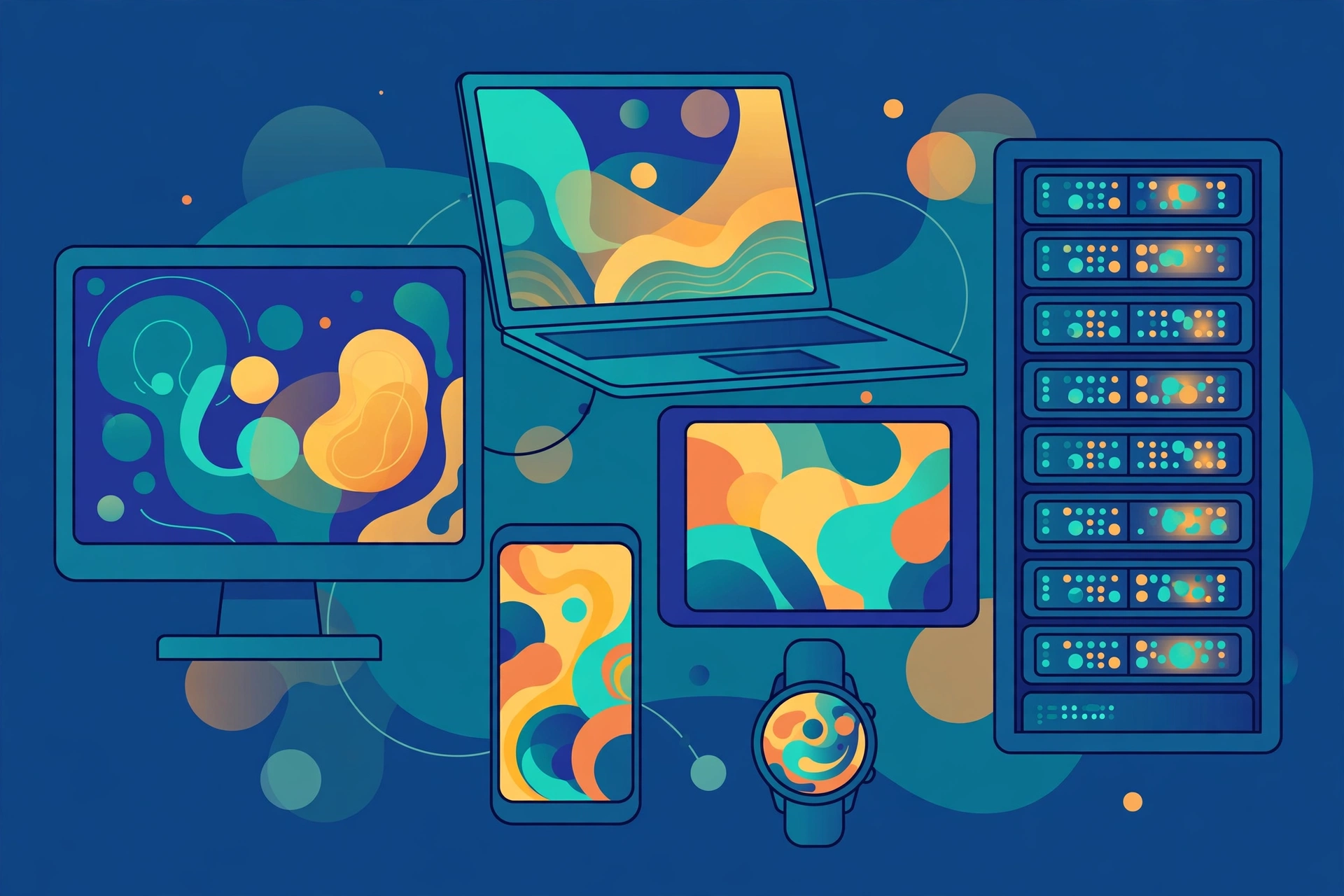
- Desktop operating systems such as Windows, macOS, and Linux distributions are built for personal computers, with rich graphical interfaces, multitasking, and broad hardware support.
- Mobile operating systems such as Android and iOS are optimised for touchscreens, battery life, and sensors, with strict app sandboxing so one app cannot freely read another’s data.
- Server operating systems such as Windows Server and Linux server distributions prioritise stability, uptime, and serving many clients at once, often without any graphical interface at all.
- Real-time operating systems (RTOS) guarantee that critical tasks finish within strict deadlines, making them essential in cars, aircraft, medical devices, and industrial robots.
- Embedded operating systems run inside appliances, routers, and smart devices, often stripped down to fit tiny amounts of memory and storage.
Security: Permissions, Users, and Sandboxing
Modern operating systems are multi-user systems, even when only one person uses the machine. Every file and process belongs to a user account, and permissions decide who can read, write, or execute it. Administrative privileges — root on Linux and macOS, Administrator on Windows — are required for system-wide changes, which is why your computer asks for confirmation before installing software.
Additional layers protect the system further. Address space layout randomisation makes it harder for attackers to predict where code lives in memory. Sandboxing confines applications — especially mobile apps and browser tabs — to their own data and declared permissions. Code signing verifies that software comes from a known publisher and has not been tampered with. And regular updates patch vulnerabilities as they are discovered, which is why keeping your operating system updated is one of the simplest and most effective security habits you can adopt.
The Operating System Landscape in 2026
The operating system world in 2026 is both stable at the top and lively underneath. On desktops, Windows remains the largest platform by a wide margin, with StatCounter figures for mid-2026 putting it around 57 to 63 percent of desktop page views depending on the month, while Apple’s macOS and OS X rows together account for roughly a quarter. Linux on the desktop, long a niche of a few percent, has climbed through 2026 — from around 4 to 5 percent early in the year toward roughly 9 percent by August — helped by better gaming compatibility through Valve’s Proton layer, wider availability of Linux-first hardware from makers such as System76 and Framework, and some public-sector migrations.
Across all device types, the picture flips: Android leads overall, ahead of Windows and iOS, because phones outnumber computers. On servers and in the cloud, Linux dominates — it powers the overwhelming majority of websites, all of the world’s top 500 supercomputers, and the infrastructure of the major cloud providers. ChromeOS, itself built on the Linux kernel, holds a small but notable desktop share, driven largely by education. These figures come from web-traffic measurements rather than counts of installed machines, so they should be read as trends rather than exact censuses — but the direction of travel is clear: the operating system has become a diverse ecosystem rather than a single winner’s market.
How to Choose an Operating System
For most people, the operating system chooses itself: it comes with the device. But when you do have a choice, consider these factors:
- Software you need: some professional tools run only on Windows or only on macOS; check compatibility before switching.
- Hardware: macOS runs on Apple hardware, while Windows and Linux run on a huge range of machines, including older hardware that Linux can revive.
- Cost and openness: Linux distributions are free and open source, while Windows and macOS are commercial products tied to their vendors’ ecosystems.
- Privacy and control: open-source systems let anyone inspect the code, while commercial systems offer polished integration at the cost of less transparency.
- Support and familiarity: the best operating system is often the one you already know, unless you have a specific reason to change.
There is no shame in dual-booting — installing two operating systems on one machine and choosing at startup — or in running one system inside a virtual machine on another. Both are excellent ways to learn how operating systems work by direct experience.
The Future of Operating Systems
Operating systems continue to evolve. Container technologies let applications carry their own dependencies, making them portable across machines without full virtual machines. Unikernels strip an operating system down to only what a single application needs. WebAssembly is pushing more computing into the browser, blurring the line between local and web applications. Meanwhile, AI features are being woven into operating systems themselves — from on-device assistants to intelligent resource management — and security models keep tightening as devices hold ever more of our lives.
One constant remains: whatever the interface looks like — a desktop, a touchscreen, a voice assistant, or a headset — some operating system underneath is scheduling processes, managing memory, guarding files, and talking to hardware. The details change, but the core job does not.
Frequently Asked Questions
Is the operating system the same as the kernel?
No. The kernel is the core of the operating system, but a complete operating system also includes system libraries, utilities, the user interface, and background services. Linux, strictly speaking, is a kernel; a Linux distribution such as Ubuntu combines that kernel with the GNU tools and a desktop environment to form a full operating system.
Can a computer run without an operating system?
Yes, but it is painful. Early computers did, and tiny embedded controllers still run a single program directly on hardware. For anything more complex, an operating system saves every program from reinventing process scheduling, memory management, and device handling.
Why does my computer slow down when many programs are open?
Usually because memory is full and the operating system starts swapping pages to disk, which is far slower than RAM, or because the processor is shared between so many threads that each one gets a smaller slice of time. Closing unused programs or adding RAM usually helps more than any “speed-up” utility.
What is the difference between 32-bit and 64-bit operating systems?
A 64-bit operating system can address far more memory — effectively unlimited for practical purposes — and processes data in larger chunks than a 32-bit system, which is limited to about 4 gigabytes of addressable memory. Virtually all modern systems are 64-bit.
Conclusion
Operating systems are easy to take for granted precisely because they do their job so well. Beneath every click, tap, and keystroke, the kernel schedules processes in millisecond slices, the memory manager juggles virtual address spaces and pages, the file system keeps your data findable and safe, and drivers translate software wishes into hardware actions. Understanding how operating systems work does not just satisfy curiosity — it helps you choose devices wisely, troubleshoot problems sensibly, and appreciate the remarkable engineering that makes modern computing feel effortless. The next time your computer boots in seconds and your apps all run at once, you will know exactly who to thank: the quiet manager at the heart of the machine.